Campaign visuals from the photos you have
Create marketing images from your photos
Turn existing photos into marketing images for ads, banners, and social posts. Remove distracting backgrounds, add a layout, and resize the design for each channel.
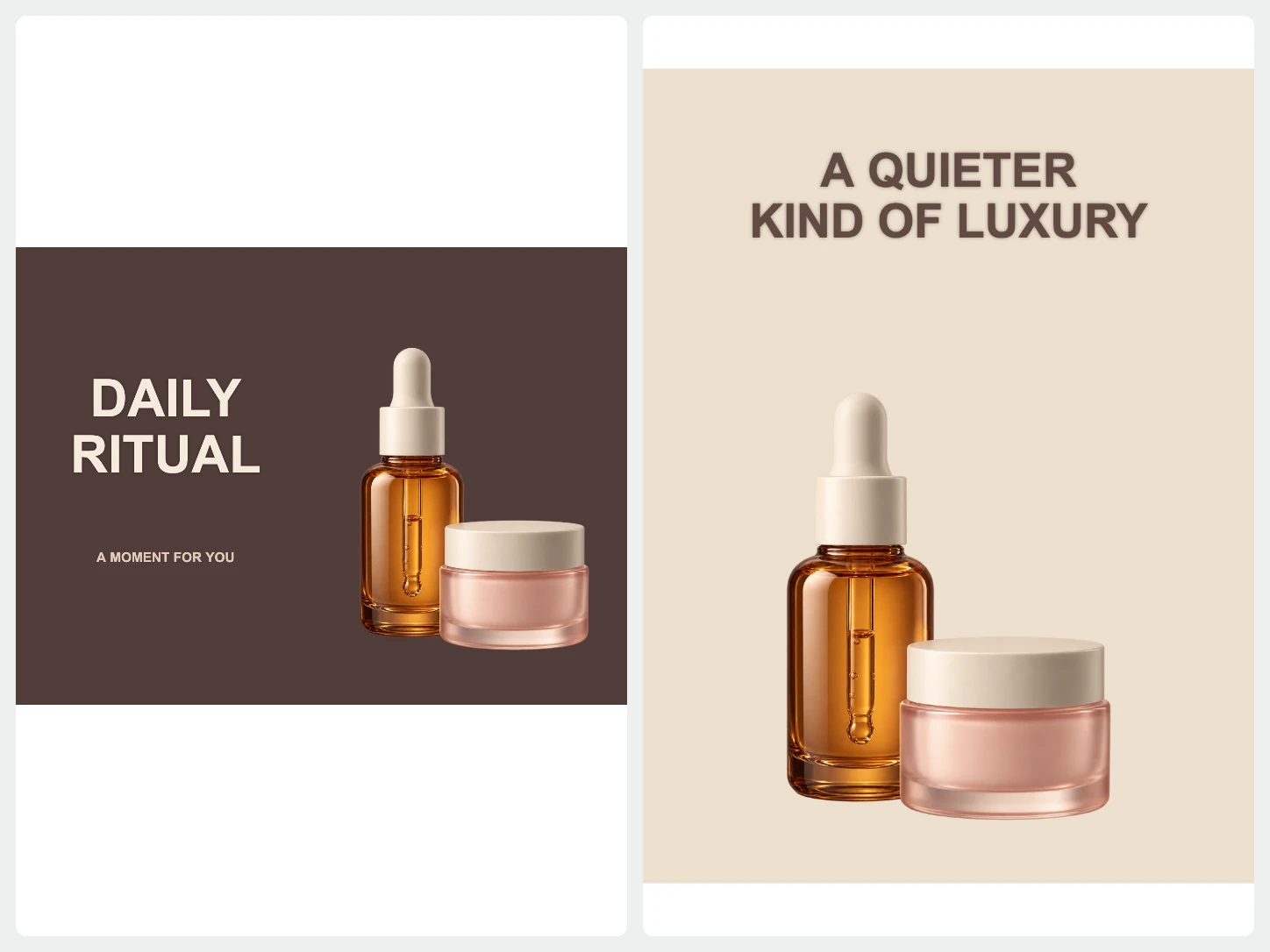
Reuse one photo across a campaign
Campaigns need the same subject in many sizes and moods, and booking a new shoot for each one is slow. Removing the background turns a product or portrait into a reusable asset: place it on a seasonal backdrop, expand the canvas for a banner, and add a headline in the template editor, all from a single upload.
Because the cutout stays on its own layer, last-minute changes are easy. Swap the backdrop for a new promotion, move the subject to make room for a price tag, or export another size for a partner, without asking a designer to rebuild the file. Teams can keep one clean cutout and reuse it all quarter.
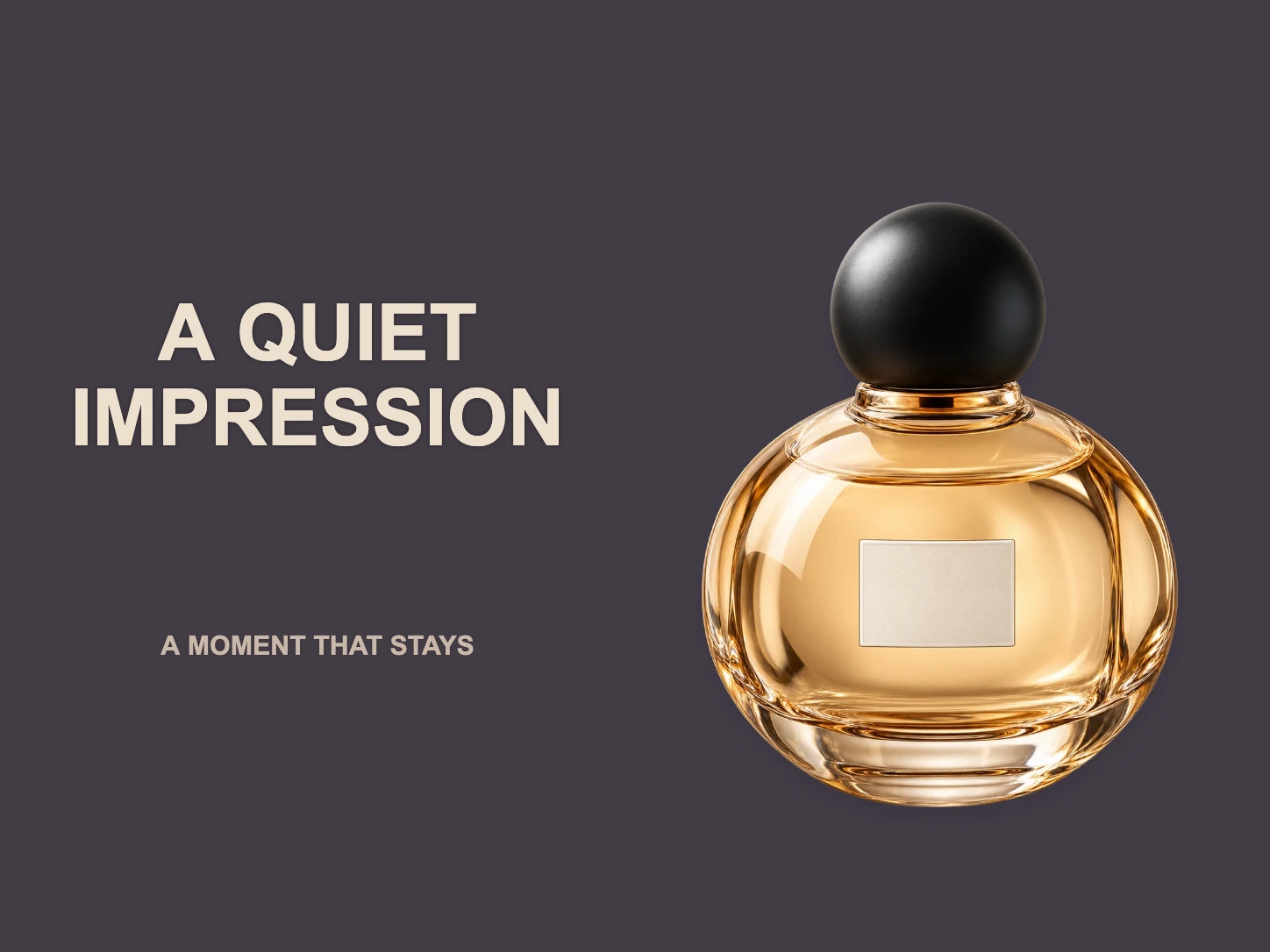
Build a campaign layout
Start with a template, place your cutout on it, and add a headline or offer. Every layer stays editable, so you can adjust spacing and copy until the visual feels right.
Explore templates and text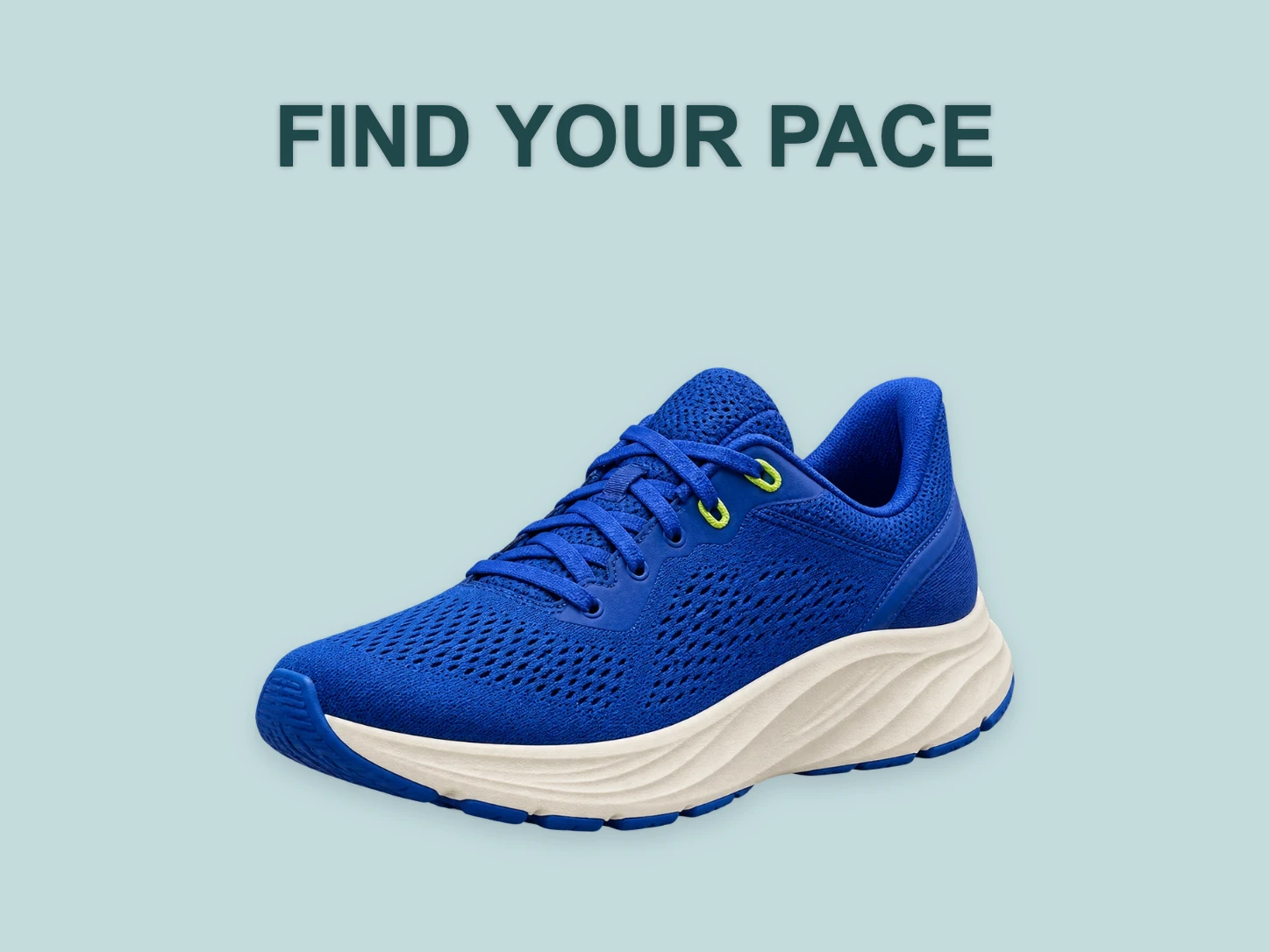
Set the scene for each season
Describe a setting and let AI generate a background around your subject, or pick a photo backdrop. Create a summer look, a holiday look, and a launch look from the same cutout.
Generate an AI background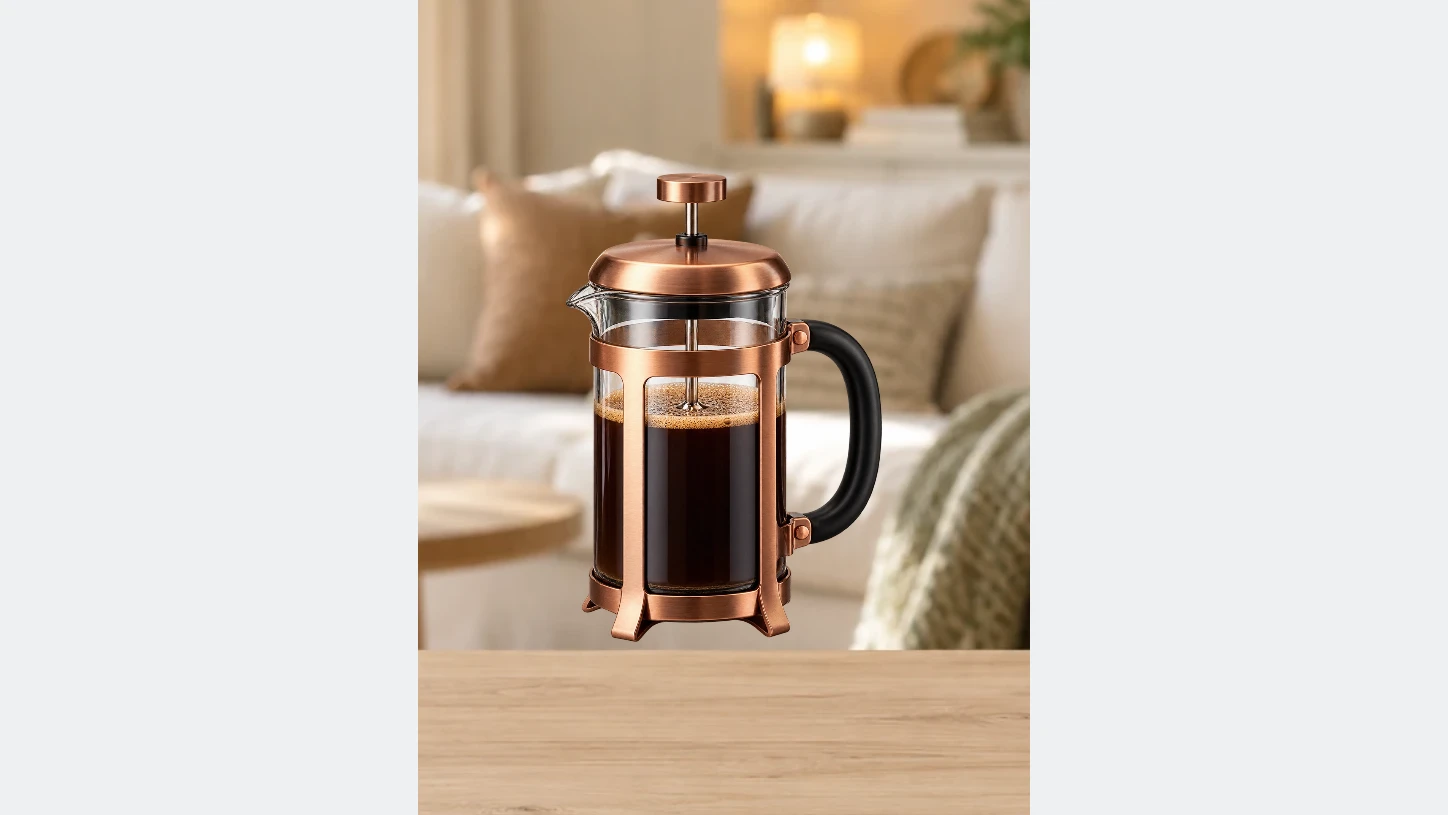
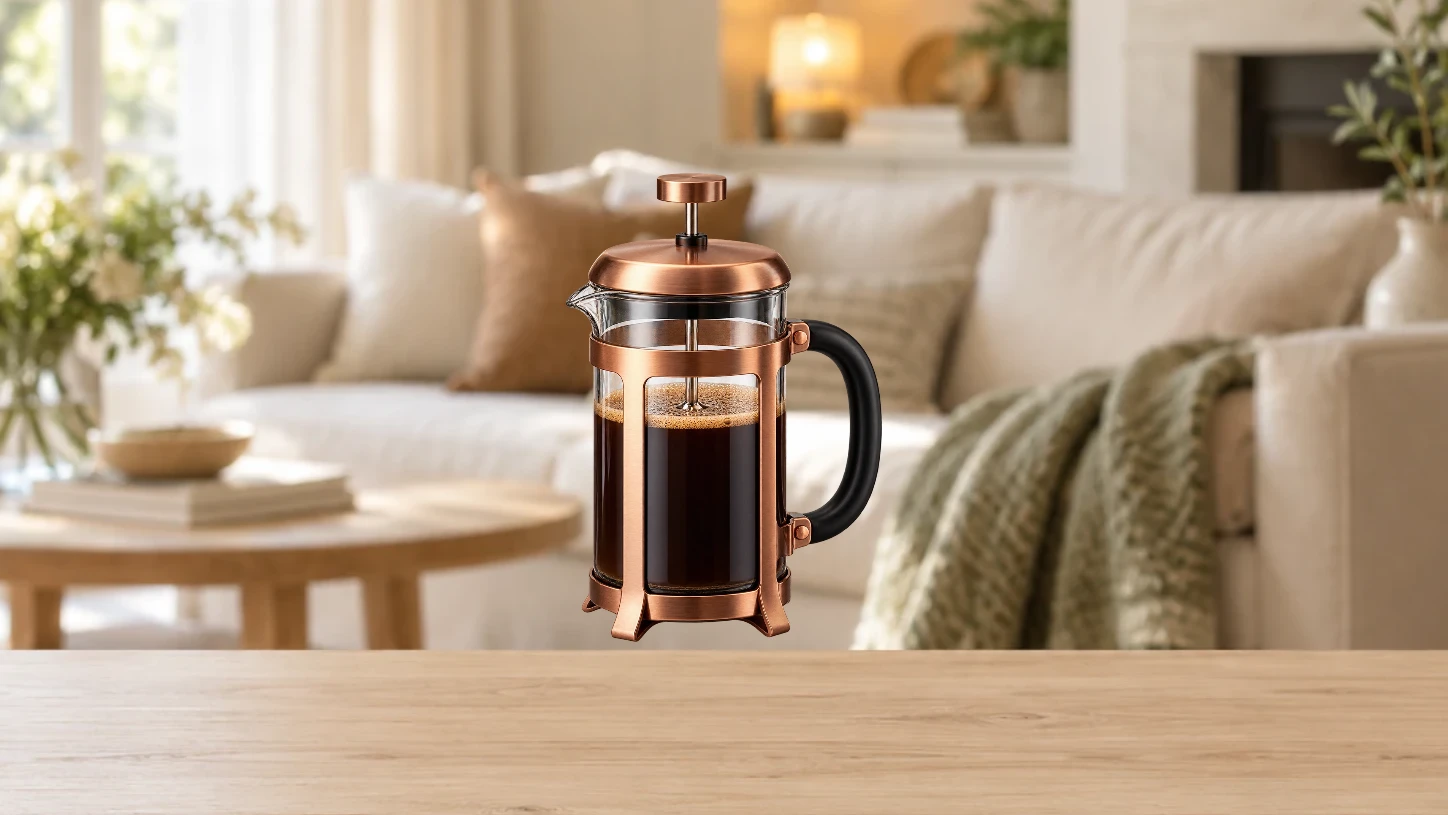
Fit every channel
Expand the image with AI to add room for text, then crop for stories, feeds, and banners. Reuse one cutout across formats without starting over.
Expand your imageFrom photo to finished image in three steps
- 01
Upload your photo
Choose one image and the background remover starts at once. For a whole set of photos, open Bulk Editing.
- 02
Edit the result
Keep it transparent or add a color, photo, or AI scene. Refine the cutout, crop it, or add text while you preview.
- 03
Download
Export PNG, JPG, or WebP. Pick PNG or WebP when you need a transparent background.
Questions about BackgroundRemove
Can I make several formats from one image?
Yes. Start from the same cutout, then change the canvas size, expand the image with AI, or apply a template for each placement before downloading.
Can I add my own text to the design?
Yes. Add editable text layers, choose a font and color, and position them on the canvas. Text stays editable until you download.
Do I need design software for these visuals?
No. The background remover, templates, text, and resizing tools all run in the browser, so you can finish simple campaign visuals without another app.
Can I upload more than one image?
The home page handles one image at a time. To remove backgrounds from several photos together, use Bulk Editing, which needs an account and image credits.
Which image types can I upload?
You can upload PNG, JPG, JPEG, WebP, or AVIF images.
Can I review the result before I download it?
Yes. Compare the original with the cutout, zoom in on the edges, and refine them with the brush before you download.